
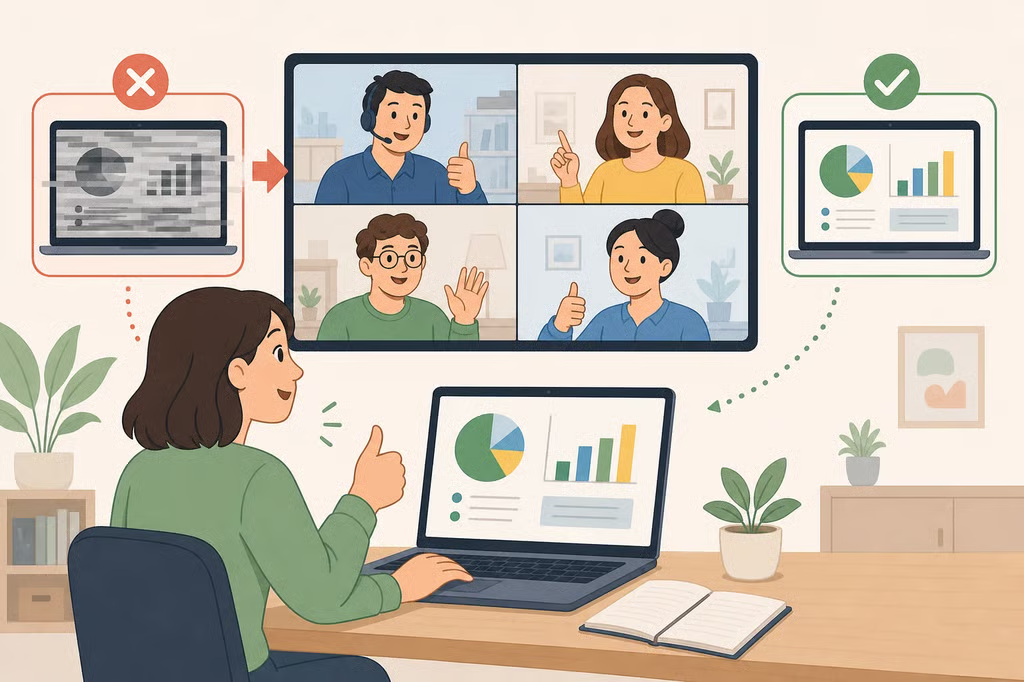
- What to do when technology fails during a presentation
- Why a glitch can cost more than lost time
- Responding in the first minute: research versus recommendation
- What to do if screen sharing fails in a meeting: fallback options by failure type
- Microsoft Teams: presenter handoffs depend on settings checked in advance
- Building a presentation backup plan for technical issues
- What to do next
What to do when technology fails during a presentation
A dropped screen share or a frozen video feed doesn't just interrupt a meeting. In a study simulating online job interviews, technical problems were tied to lower credibility and suitability ratings for the remote speaker, and participants didn't even realize their judgment had shifted (ACM CHI Extended Abstracts, 2022). That's the backdrop worth knowing before working through what to do when technology fails during a presentation, whether the setting is a job seeker on a video interview, a professional mid-pitch, or an employee running an internal Teams or Zoom update.
A 2024 study built on that finding by testing which responses actually reduce the damage once a glitch happens (ACM, 2024). Microsoft's Teams documentation, updated last year, shows that common recovery moves, like handing control to a colleague, depend on settings chosen before a meeting starts rather than decisions made in the moment (Microsoft Learn). Both ACM studies center on simulated interviews, so the sequence below adapts that research rather than reproducing a script proven to work identically in a sales pitch or a weekly status meeting. The stakes still shift by setting: a frozen interview feed carries different follow-up expectations than a stalled internal update, even when the first response looks the same.
Why a glitch can cost more than lost time
Across three controlled experiments simulating an online job interview, technical issues lowered how credible participants rated remote applicants (ACM, 2024).
The same research also coded how participants explained a malfunction after it happened. More than half attributed responsibility to the technology rather than the person (ACM, 2024). Yet those same participants still rated the applicant's credibility lower, so naming the technology as the cause didn't prevent the drop in perceived competence.
That gap between blame and impression shows up in earlier research too. In a 2022 study, participants rated a remote speaker as less suitable and less credible after a technical glitch, without realizing the glitch had shaped their judgment at all (ACM CHI Extended Abstracts, 2022).
Both studies simulate job interviews rather than sales pitches or internal team meetings, so treat the credibility risk as a documented pattern worth preparing for, not an identical threat in every meeting type. Even with that limit, the pattern is consistent enough across both studies to justify having a response ready, on top of whatever actually gets the technology working again.
Responding in the first minute: research versus recommendation
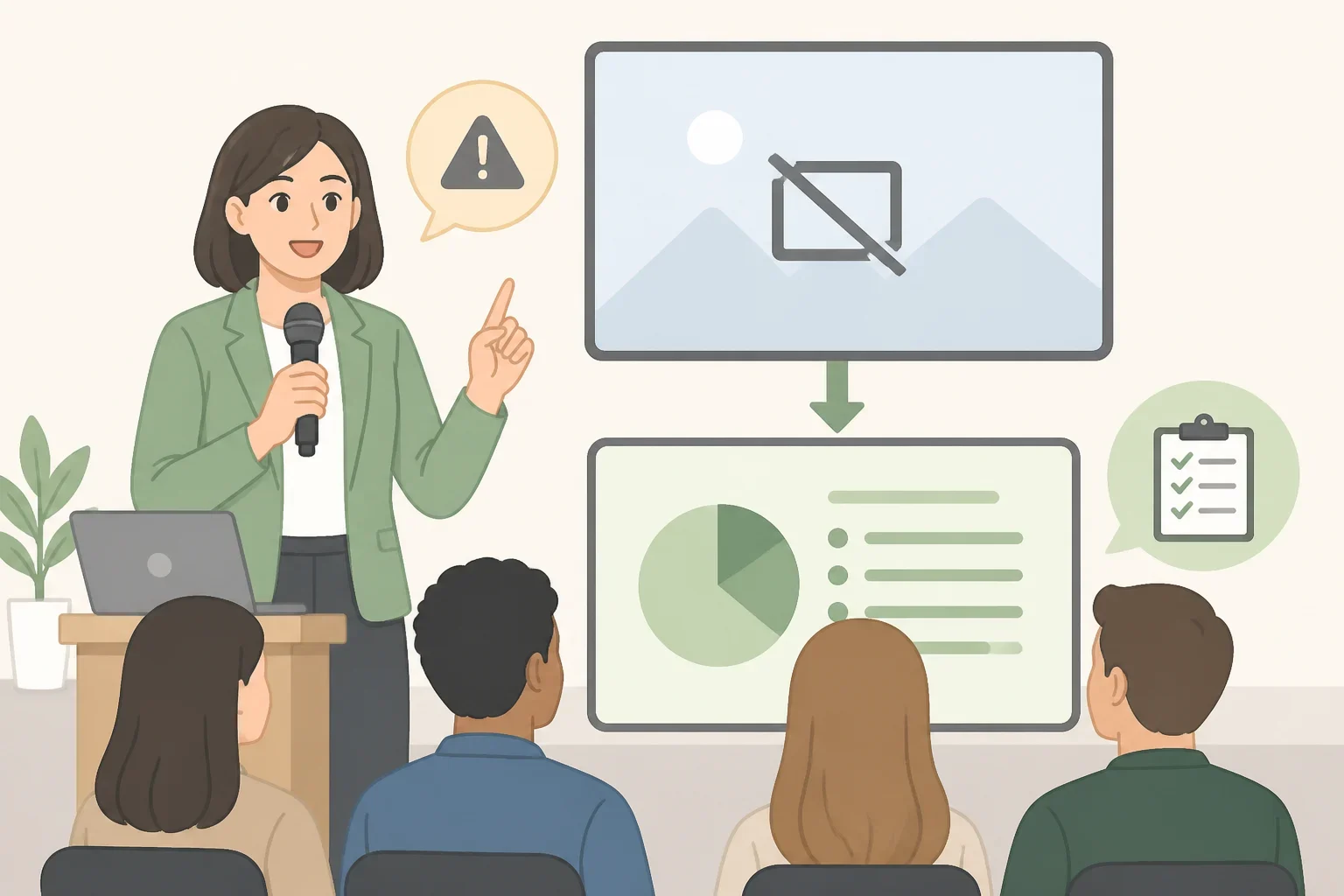
The 2024 study tested two different ways to reduce the damage a glitch does to a presenter's credibility (ACM, 2024). The results point in a fairly clear direction:
- A virtual agent taking the blame didn't help. Researchers added a human-like avatar to the meeting to actively take responsibility for the technical issue. That reduced how much blame participants assigned to the applicant, but it didn't raise credibility ratings, and in some conditions ratings got worse instead (ACM, 2024). The study tested this specific setup, not a generic automated apology or a standard "we're experiencing technical difficulties" message, so a simpler system notification might behave differently.
- A forewarning message worked better. A message that explicitly told participants the glitch's cause was hard to identify, and could unfairly color their impression, reduced the negative effect of the technical issue on credibility ratings (ACM, 2024). That message was a pre-set disclosure built into the study, not something a presenter improvised live.
Turning that second finding into a spoken line for a real meeting is this article's extension of the research, not something the study tested directly. With that caveat, here's a practical sequence built from the finding:
- Name the interruption plainly. "My screen share just dropped" lands better than a joke or dead silence.
- State what happens next, even before the cause is clear. Saying the uncertainty out loud follows the same logic as the forewarning message that reduced credibility damage in testing.
- Choose one fallback and commit: keep talking, hand off to a co-presenter, ask everyone to rejoin, or push the segment to later. Committing to a single option is easier for an audience to follow than juggling several.
- Save troubleshooting for after the group is stable, ideally while a co-presenter is talking or the group is mid-question.
Writing that line and picking a fallback ahead of time means neither has to get worked out live, when sounding composed is hardest.
What to do if screen sharing fails in a meeting: fallback options by failure type
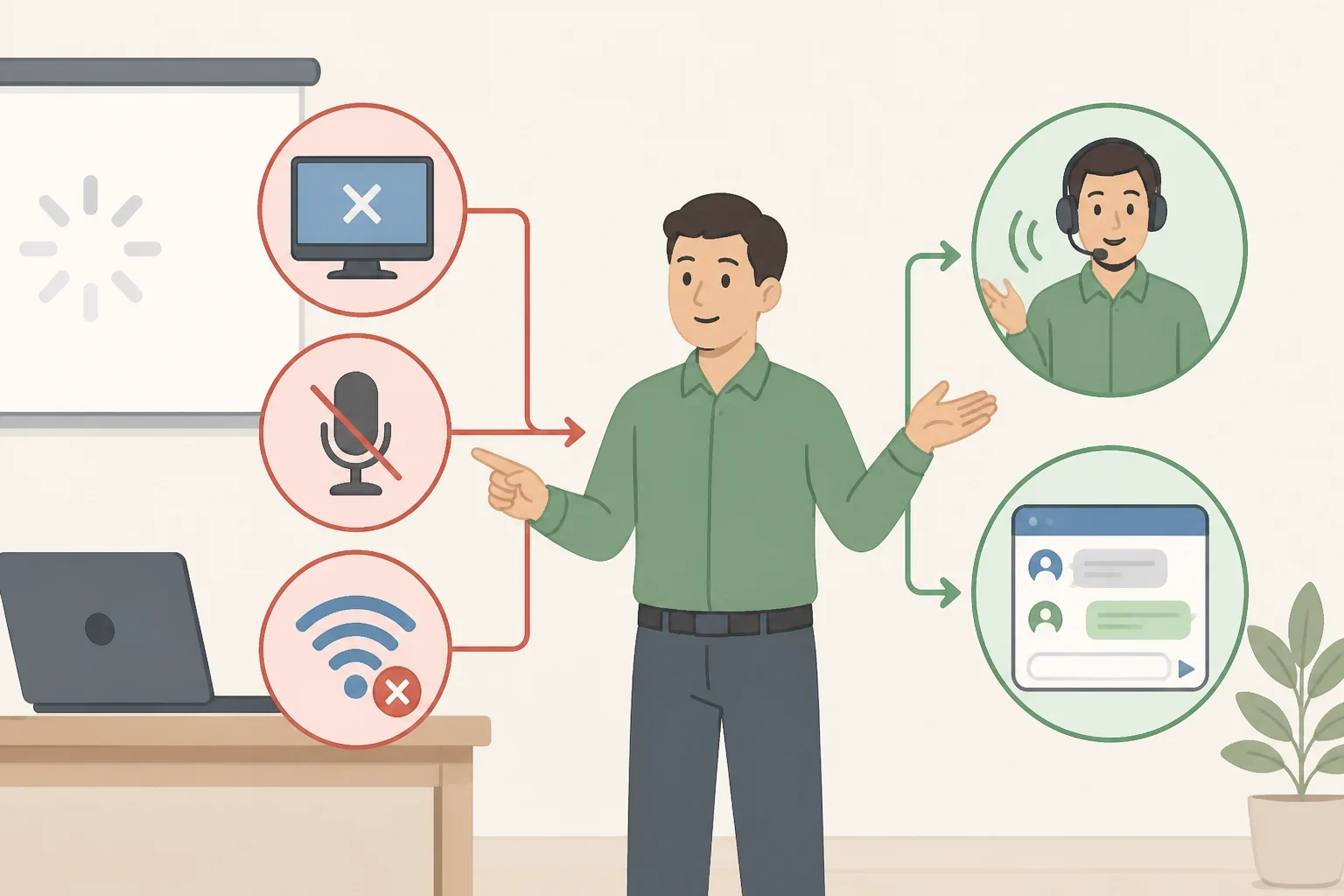
Different failures call for different responses, so it helps to have an option ready for each rather than improvising once something breaks.
If slides or screen share fail, one option is continuing with a pre-built three-point verbal outline so the core message survives without visuals. Toastmasters International, a public-speaking organization, advises delivering the main message within the first two minutes since audience attention runs highest early on (Toastmasters International, 2024). That's general speaking advice rather than evidence about repairing trust after a technical failure, but it's a reasonable frame to hold onto while a fix gets attempted.
If audio fails, switching to the meeting chat, asking an attendee to relay questions, or leaving and rejoining the call are worth trying before talking over a broken connection. If video freezes, turning off the camera and continuing on audio only keeps the message moving, even though the exchange loses some of its personal feel. If the connection drops entirely, a pre-arranged backup presenter telling the group what happens next keeps the meeting from sitting in silence.
These audio, video, and disconnection suggestions are practical options, not findings tested in the research cited above. Toastmasters does recommend keeping a couple of short, targeted anecdotes ready to pull a distracted or frustrated audience back in once things resume (Toastmasters International). Paired with a one-page, platform-independent outline, three points plus a couple of backup anecdotes gives a presenter something to fall back on when losing slides or audio would genuinely hurt the message.
Microsoft Teams: presenter handoffs depend on settings checked in advance
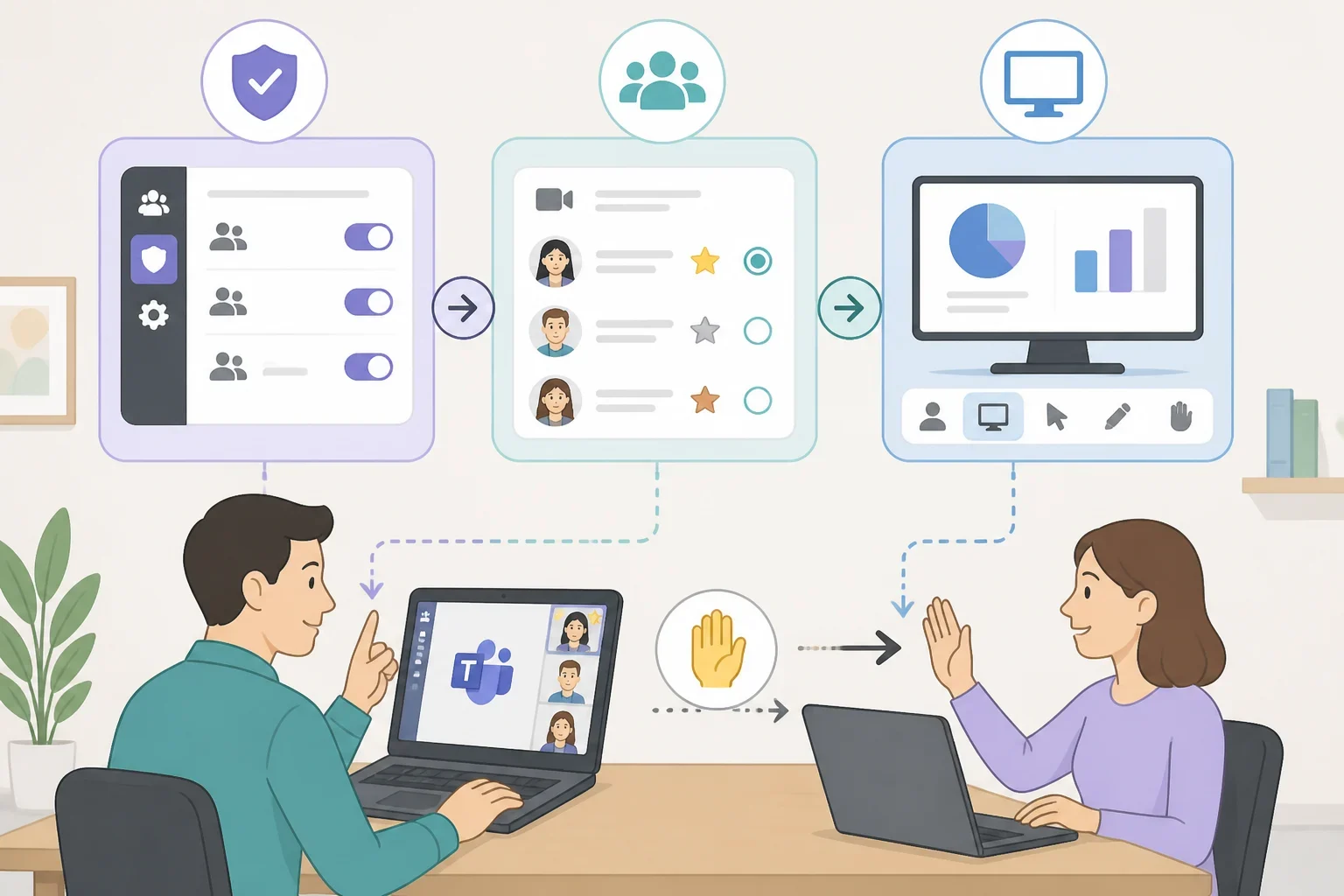
When a meeting technology failure happens on Teams, some recovery options depend on settings checked well before the meeting, not anything a presenter can fix in the moment.
A Microsoft Q&A response published last year addressing a presenter whose share won't display suggests a handful of troubleshooting steps: checking for an unstable network connection, leaving and rejoining the meeting, switching from the browser version to the Teams desktop app, and updating or clearing the Teams cache (Microsoft Q&A). Those are suggestions from a support thread, not a guaranteed fix for every case.
For an attendee who can't see shared content, the same response recommends starting with a few diagnostic questions: whether the problem affects one person or everyone, whether the screen is blank or showing an error, and whether the presenter is using PowerPoint Live or standard screen sharing (Microsoft Q&A). For an external attendee specifically, the cause may be a content-sharing policy the organizer or admin set, rather than a personal connection problem.
Whether a backup presenter can actually take over runs through two layers of settings. At the admin level, a Teams meeting policy called "Who can present" restricts the organization to one of three tiers: only organizers and co-organizers, people in the organization plus guests, or everyone (Microsoft Learn). Within whatever that admin policy allows, an individual meeting's organizer can then choose from a separate set of per-meeting options: only me and co-organizers, specific people, people in my org and guests, or everyone, with everyone set as the default (Microsoft Learn). A spontaneous handoff only works if the backup presenter falls inside both the admin policy and whatever tier the organizer chose for that specific meeting, so confirming both with the organizer beats assuming everyone applies.
Screen control is a separate setting, easy to confuse with presenter access. By default, participants can give or request control of a shared screen, but an administrator can turn that off, and external participants can't receive control unless that setting is changed (Microsoft Learn). Being handed control of someone's screen doesn't make a person a presenter under the meeting's tier; it's a narrower, admin-controlled toggle. Sharing an entire screen as a quick workaround also raises the chance of exposing an open email, document, or other window that wasn't meant to be visible.
Other meeting platforms likely use different presenter and screen-control defaults than Teams. Anyone presenting somewhere unfamiliar is better off checking that system's settings or asking the organizer directly, rather than assuming a Teams workaround will carry over.
Building a presentation backup plan for technical issues
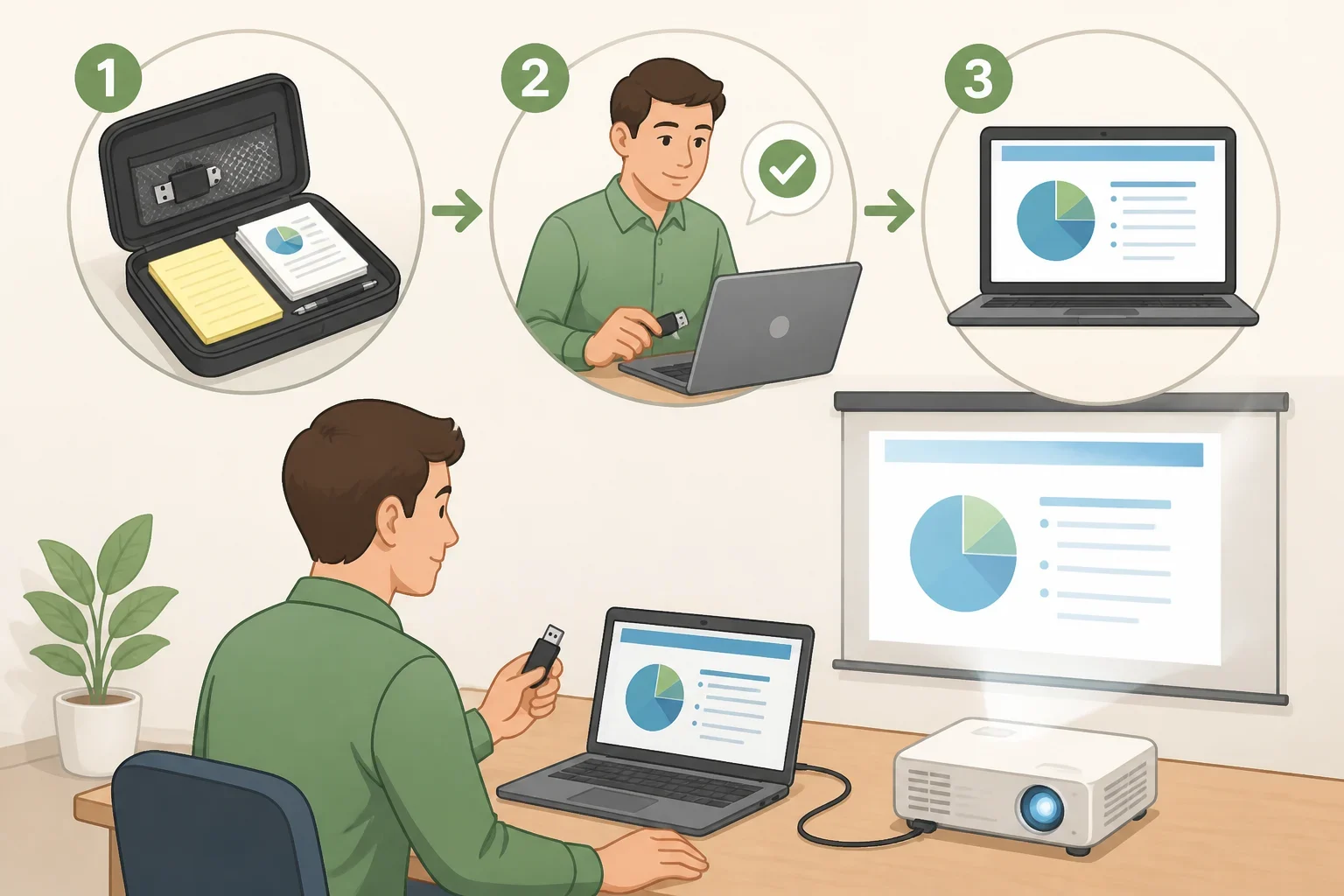
Most of what makes a recovery look smooth happens before the meeting, not during it. This is really the practical core of handling technical difficulties during a presentation before they ever start.
Confirming a backup presenter's actual access with the organizer, covering both the admin-level policy and the specific per-meeting tier chosen, removes one point of failure. Testing that access matters more than assuming it: have the backup presenter join a short test meeting beforehand to confirm the handoff actually works, rather than discovering a permissions gap live.
Preparing an offline or printable version of key slides, plus a one-page handout, means content survives even a full platform outage. Confirm that file opens on a second device too, in case the primary laptop or tablet is what fails. Drafting the short disclosure line and the three-point verbal outline described earlier means neither has to get built from scratch mid-meeting.
How much of this preparation makes sense depends on the meeting. A job interview may call for little more than a brief spoken acknowledgment in the moment and a short follow-up note afterward. A client pitch carries higher stakes, so rescheduling a live demo could be worth more than pushing through a degraded version. An internal team update may tolerate a short pause and a rejoin without much added recovery. These are examples of how stakes shift the level of preparation, not fixed rules to apply everywhere.
What to do next
Before the next presentation where the audience, decision, or relationship actually matters, confirm which who-can-present tier is active with the meeting's organizer, and check that the intended backup presenter falls inside it at both the admin and meeting level. That single conversation resolves the biggest unknown in this plan.
None of this guarantees a flawless meeting, and platform settings change over time, so anything Teams-specific here is worth reverifying directly with an IT team or meeting administrator before relying on it in a high-stakes meeting.
